

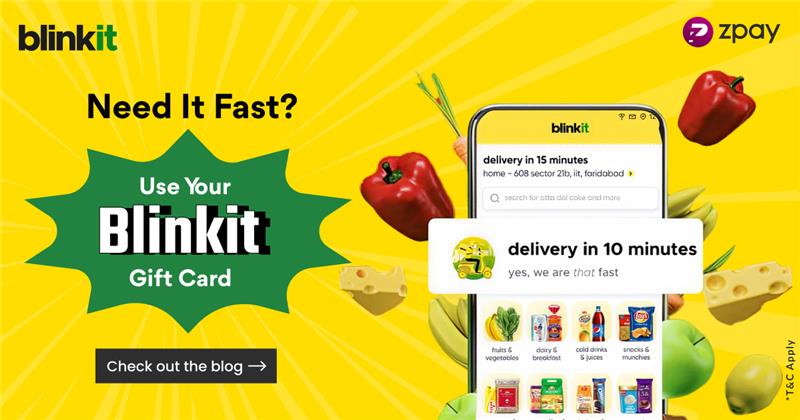
Speed is the reason most people use the Blinkit app. Whether it’s milk, vegetables, snacks, or household supplies, Blinkit online shopping is designed for quick decisions and even quicker delivery. When you already have Blinkit gift vouchers, checkout becomes even faster.
Instead of entering payment details every time you place a Blinkit order, you can simply redeem the voucher and use the balance instantly.
Blinkit Gift Vouchers and Cards
Blinkit gift vouchers are prepaid digital vouchers that can be redeemed within the Blinkit app and used as a payment method while placing a Blinkit order online.
They carry a fixed value and can be applied toward your total cart amount. Once redeemed, the voucher amount either gets added to your account wallet or is directly usable at checkout.
For regular Blinkit customer users, vouchers simplify repeat purchases and make payments faster.
Adding Blinkit Gift Vouchers to Your Account
Before you place your next Blinkit order, it’s important to add the voucher properly inside the Blinkit app.
Step 1: Log in to the Blinkit App
Open the Blinkit app on your smartphone and sign in using your registered mobile number. Make sure you are logged into the correct account where you want to use the voucher.
If you are a new Blinkit customer, complete the registration process first.
Step 2: Access the Wallet or Gift Card Section
After logging in:
- Tap on your profile icon.
- Navigate to the Wallet, Payments, or Gift Card section.
- Select the option that allows you to add or redeem a gift voucher.
The exact label may vary slightly depending on the app version, but the option will be available inside your account section.
Step 3: Enter Voucher Code and PIN
Carefully enter:
- The voucher code
- The PIN
Double-check the details before confirming. A small typing error can prevent the voucher from being validated.
Once verified, the value of the Blinkit gift vouchers will be successfully linked to your account.
Placing an Order After Adding the Voucher
After adding the voucher, you can proceed with your Blinkit online shopping as usual.
1. Select Your Products
Browse categories within the Blinkit app and add items to your cart. You can shop for:
- Groceries
- Dairy products
- Snacks
- Household essentials
- Personal care products
The entire catalogue available for Blinkit order online can be purchased using your voucher balance.
2. Proceed to Checkout
Once your cart is ready:
- Tap on Checkout.
- Confirm your delivery address.
- Review your order details.
If your area supports Blinkit 10 minute delivery, you may see a fast delivery option during checkout.
3. Apply the Voucher at Payment Stage
At the payment page:
- Choose the wallet or gift voucher balance as your payment method.
- The available voucher amount will automatically adjust to your total bill.
- If your cart value exceeds the voucher balance, you can pay the remaining amount using another method.
The process is simple and does not delay your Blinkit order.
4. Things to Keep in Mind While Redeeming
To ensure smooth usage of Blinkit gift vouchers, keep these points in mind:
- The voucher must be valid and within the expiry period.
- Always enter the code exactly as provided.
- Redeem the voucher before completing payment.
- Make sure your Blinkit app is updated to avoid technical issues.
Once the voucher amount is applied successfully, it cannot be reversed.
Making the Most of Your Blinkit Experience
Many users prefer vouchers because they speed up checkout during urgent purchases. When placing a Blinkit order for daily essentials, especially under Blinkit 10 minutes delivery, quick payment matters.
With the voucher already added:
- You avoid repeated payment authentication.
- You reduce checkout time.
- You experience smoother Blinkit online shopping.
Frequent Blinkit customer users often add vouchers in advance so that every future Blinkit order online becomes quicker.
Managing Payments Alongside Coupons
While placing your Blinkit order, you may also see options to apply a Blinkit coupon or Blinkit discount coupon. These are separate from the voucher balance.
If applicable, the Blinkit discount will reduce your order total before final payment. The voucher amount will then be deducted accordingly.
Always check the final payable amount on the checkout page before confirming.
When to Add the Voucher
It is recommended to add Blinkit gift vouchers to your account as soon as you receive them rather than waiting until checkout. Adding them in advance ensures:
- Faster payment flow.
- No delays during order confirmation.
- Immediate use when placing a Blinkit order online.
This is especially useful when you need essentials quickly and want to take advantage of Blinkit 10 minute delivery.
Why Blinkit Gift Vouchers Simplify Shopping
The Blinkit app is built around convenience. Vouchers align perfectly with that goal.
They:
- Reduce dependency on external payment gateways.
- Speed up transactions.
- Work easily during Blinkit online shopping.
- Help manage prepaid grocery budgets.
For regular Blinkit customer users, vouchers become a reliable payment method that supports fast, uninterrupted ordering.
Using Blinkit gift vouchers inside the Blinkit app is easy. Add the voucher to your account section, proceed with your Blinkit online shopping, and apply the balance at checkout while placing your Blinkit order.
With Blinkit 10 minute delivery available in many areas, quick payment ensures your essentials reach you without delay.
Add the voucher once, shop normally, and let the Blinkit app handle the rest.
Need groceries urgently? The Blinkit app has changed how people shop for daily essentials. From vegetables and dairy to snacks and household items, Blinkit online shopping is designed for speed. In many locations, Blinkit 10 minute delivery ensures your order reaches you almost instantly.
If you have Blinkit gift vouchers, the process becomes even smoother. Instead of entering card or UPI details every time you place a Blinkit order online, you can redeem the voucher once and use the balance instantly.
If you don’t have one yet, buying Blinkit vouchers through ZPay is one of the fastest ways to get started.
Buy Blinkit Gift Vouchers Instantly
Before redemption comes purchase. Choosing the right platform matters.
Many users prefer buying Blinkit gift vouchers through ZPay because:
- Instant digital delivery
- Secure payment options
- Multiple denomination choices
- Easy gifting to friends or family
- No waiting for physical cards
Planning your own grocery budget or sending a gift to someone, ZPay allows you to buy Blinkit vouchers instantly and receive the code quickly.
Once received, you simply add the voucher to your Blinkit app and start shopping.
Blinkit Gift Vouchers
Blinkit gift vouchers are prepaid digital credits that can be redeemed inside the Blinkit app and used as a payment method while placing a Blinkit order.
They carry a fixed value. Once added, the balance is either stored in your account wallet or directly usable at checkout.
It’s important not to confuse vouchers with promotional discounts such as:
- Blinkit coupon
- Blinkit app coupon
- Blinkit discount
- Blinkit discount coupon
For frequent Blinkit customers, vouchers simplify repeat purchases and reduce checkout time.
How to Add Blinkit Gift Voucher in Blinkit App
Adding your voucher correctly ensures there are no delays during checkout. Follow these steps carefully.
Step 1: Log in to the Blinkit App
Open the Blinkit app on your smartphone.
- Enter your registered mobile number.
- Complete OTP verification.
- Make sure you are logged into the correct account.
If you are placing your Blinkit first order, complete registration before redeeming the voucher.
Step 2: Navigate to Wallet or Gift Card Section
After logging in:
- Go to the Wallet, Payments, or Gift Card section.
- Select the option to add or redeem a gift voucher.
The exact name may differ slightly depending on the app version, but it will be located within your account area.
Step 3: Enter the Voucher Code and PIN
Carefully enter:
- The voucher code
- The PIN
Double-check the details before confirming. Even a small mistake can prevent validation.
Once verified, the value of your Blinkit gift vouchers will be successfully linked to your account.
If you purchased the voucher via ZPay, simply copy the code received and paste it into the Blinkit app.
How to Use Blinkit Gift Voucher While Placing an Order
After adding the voucher, you can proceed with your Blinkit order online as usual.
1. Select Your Products
Browse categories in the Blinkit app and add items to your cart. You can shop for:
- Groceries
- Fresh produce
- Dairy products
- Snacks
- Beverages
- Household essentials
- Personal care items
Everything available for Blinkit online shopping can be purchased using your voucher balance.
2. Proceed to Checkout
When your cart is ready:
- Tap Checkout.
- Confirm delivery address.
- Review order details.
Quick payment ensures your order is processed without delay.
3. Apply the Voucher at Payment Stage
At the payment page:
- Select wallet or gift voucher balance.
- The available amount will automatically adjust against your total bill.
If your Blinkit order exceeds the voucher value, you can pay the remaining balance using other mode. The system automatically deducts the voucher amount first.
When Should You Add the Voucher?
It is recommended to add Blinkit gift vouchers immediately after receiving them instead of waiting until checkout.
Adding in advance ensures:
- Faster checkout
- No last-minute code entry
- Smooth Blinkit first order experience
- Quick confirmation during Blinkit 10 minute delivery
Frequent Blinkit customers often preload vouchers to make every Blinkit order online faster.
Important Things to Remember
To avoid issues while redeeming:
- Ensure the voucher is within its validity period.
- Enter the code exactly as provided.
- Redeem before completing payment.
- Keep your Blinkit app updated.
- Voucher balances usually cannot be reversed once applied.
If a voucher fails to apply:
- Recheck the code.
- Confirm expiry date.
- Ensure you are logged into the correct account.
Small errors are the most common cause of redemption problems.
Why Blinkit Gift Vouchers Make Shopping Easier
The Blinkit app is built around speed and convenience. Gift vouchers align perfectly with that goal.
They:
- Reduce dependency on external payment gateways.
- Save time during checkout.
- Simplify repeat grocery purchases.
- Help manage prepaid monthly budgets.
If purchased via ZPay, the entire process becomes even smoother, buy instantly, receive instantly, and redeem instantly.
For regular Blinkit customers, vouchers become a reliable payment method that supports fast and uninterrupted shopping.
Blinkit is designed for people who value time. Be it a late-night grocery run or a last-minute household need, quick checkout matters.
Adding Blinkit gift vouchers inside the Blinkit app ensures faster payments and smoother order confirmations. Buying the voucher through ZPay makes the first step even easier.
Add the voucher once. Shop normally. Apply it during checkout. Let Blinkit handle the rest. No waiting. Just fast, convenient shopping.